Everything in one place, for everyone who runs the club.
Home and seven groups, the same names for everyone. Search that knows the jobs, a simple screen on a phone, and a way back to wherever you were.
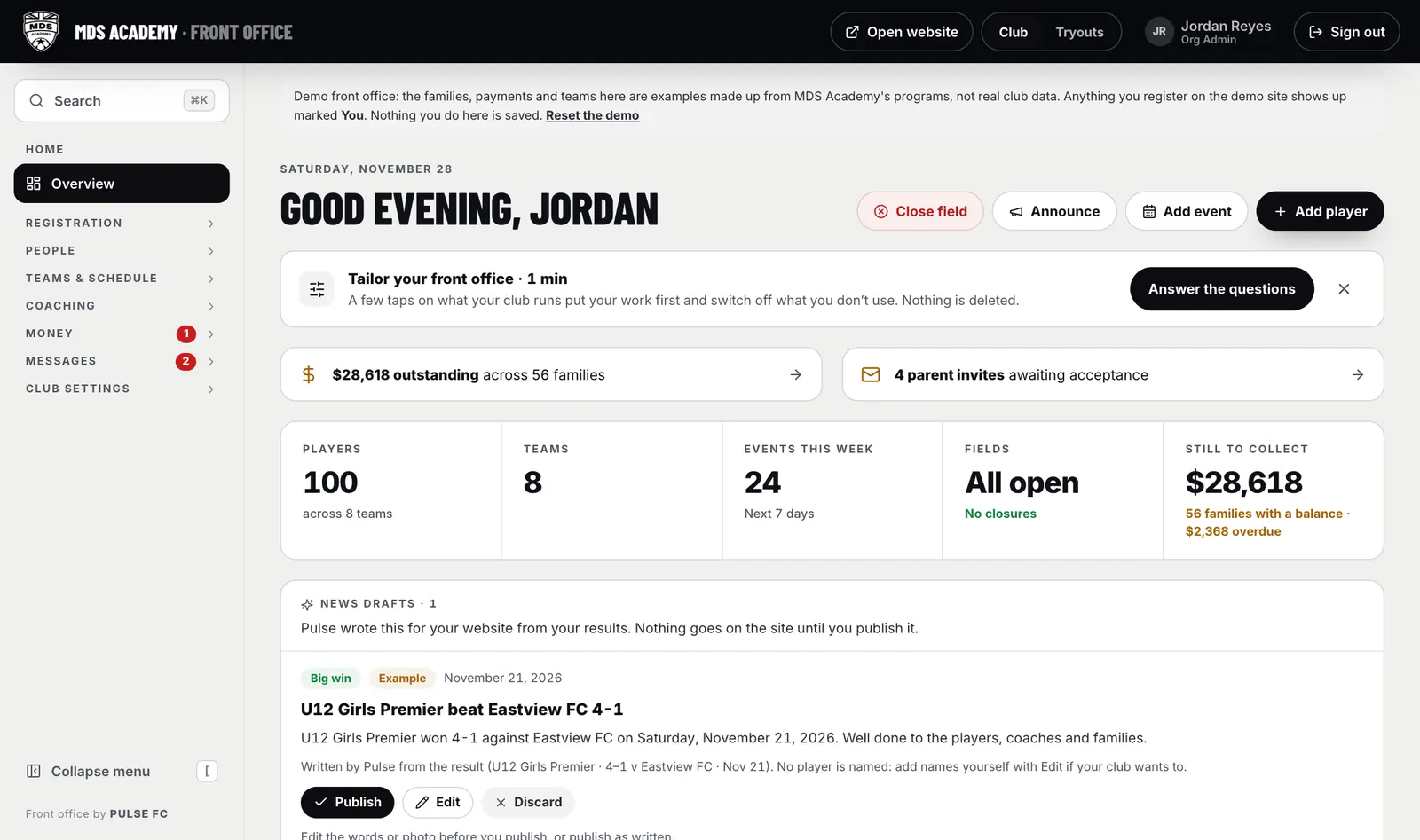
Home and seven groups.
Every page lives in one of eight places, named for the job. Only the group you’re in opens, so the menu never grows into a wall. Each person’s menu starts set up for their role: the registrar has Families pinned, a coach the Schedule.
| Home | The Overview: what’s outstanding, this week, and what needs someone today. |
| Registration | Programs, registrations and waivers. |
| People | Families, players, staff, clearances, player cards and uniforms. |
| Teams & schedule | Teams, the schedule, fields and locations, tournaments. |
| Coaching | The Coaching home, team health and evaluations. |
| Money | Payments (Who owes, fees, deposits), the books and the payout account. |
| Messages | The inbox, announcements, email and the automatic emails. |
| Club settings | Settings, the website and the audit trail. |
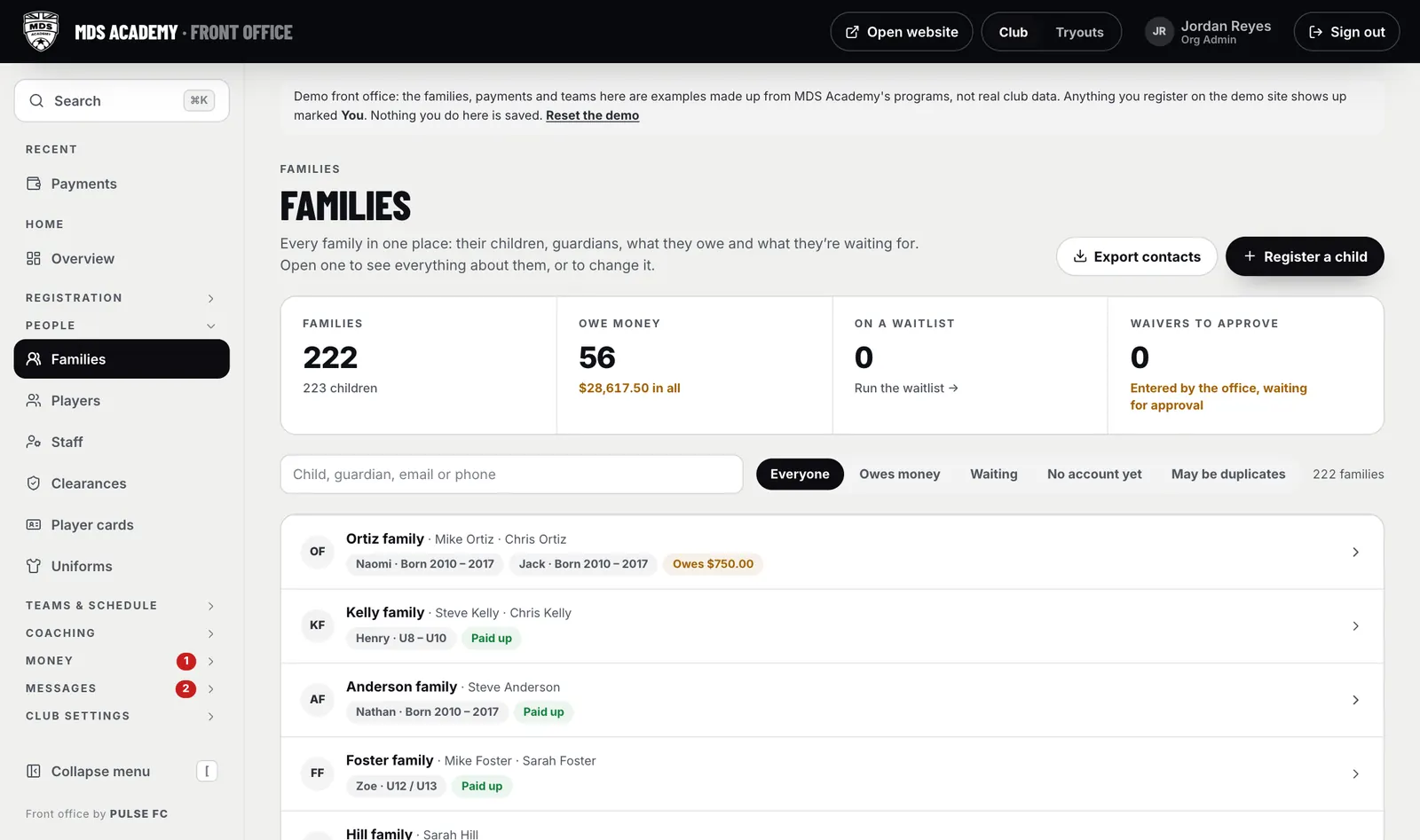
Search that knows the jobs.
Press ⌘K, or tap Search, and type what you need in your own words: “unpaid”, “late fee”, “invite coach”, “close a field”. It finds the page, the setting, the team, the family or the player, and never shows more than your role can open.
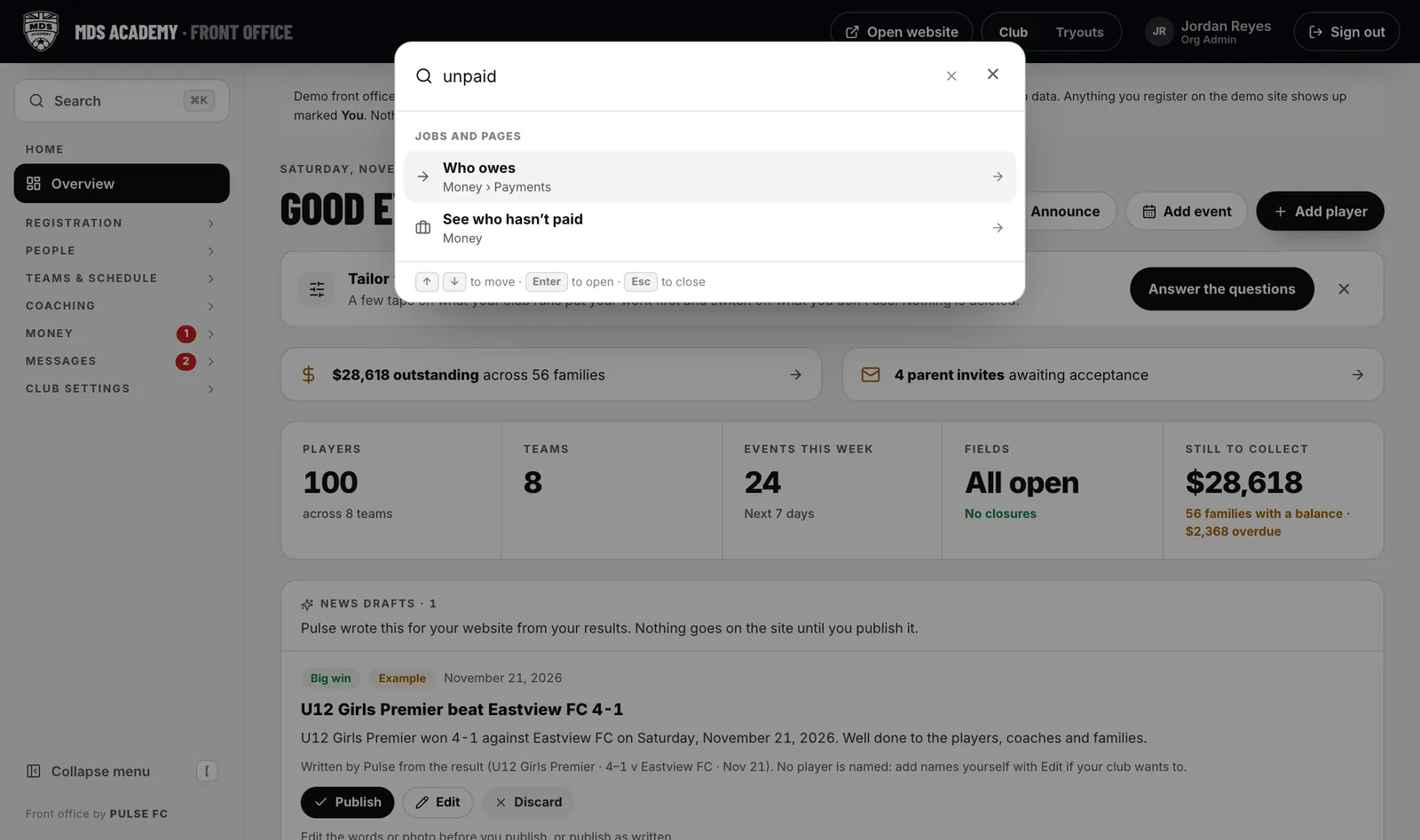
A way back, every time.
Follow a link from the Overview to Who owes, or from a family to a payment, and “← Back to …” takes you to exactly where you were, with your place kept. Pages that belong together sit as tabs on one item: Who owes, Fees and Deposits under Payments.
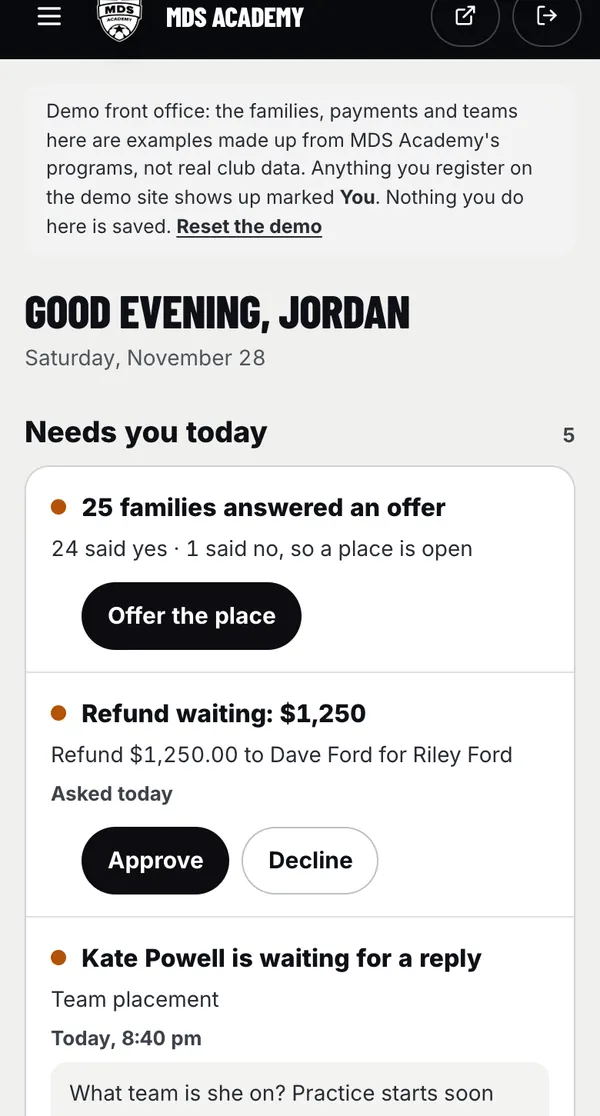
On a phone, just what needs you today.
The front office lives on a computer. On a phone it becomes one simple screen: Needs you today, ordered by deadline, with the button to act on each one. Families waiting on a reply, offers answered, approvals, failed payments, a coach missing for tomorrow, clearances running out, rain on a game day. Then “Look it up” for who owes, rosters and contacts.
Anything bigger says “Open on a computer” and emails you the link.
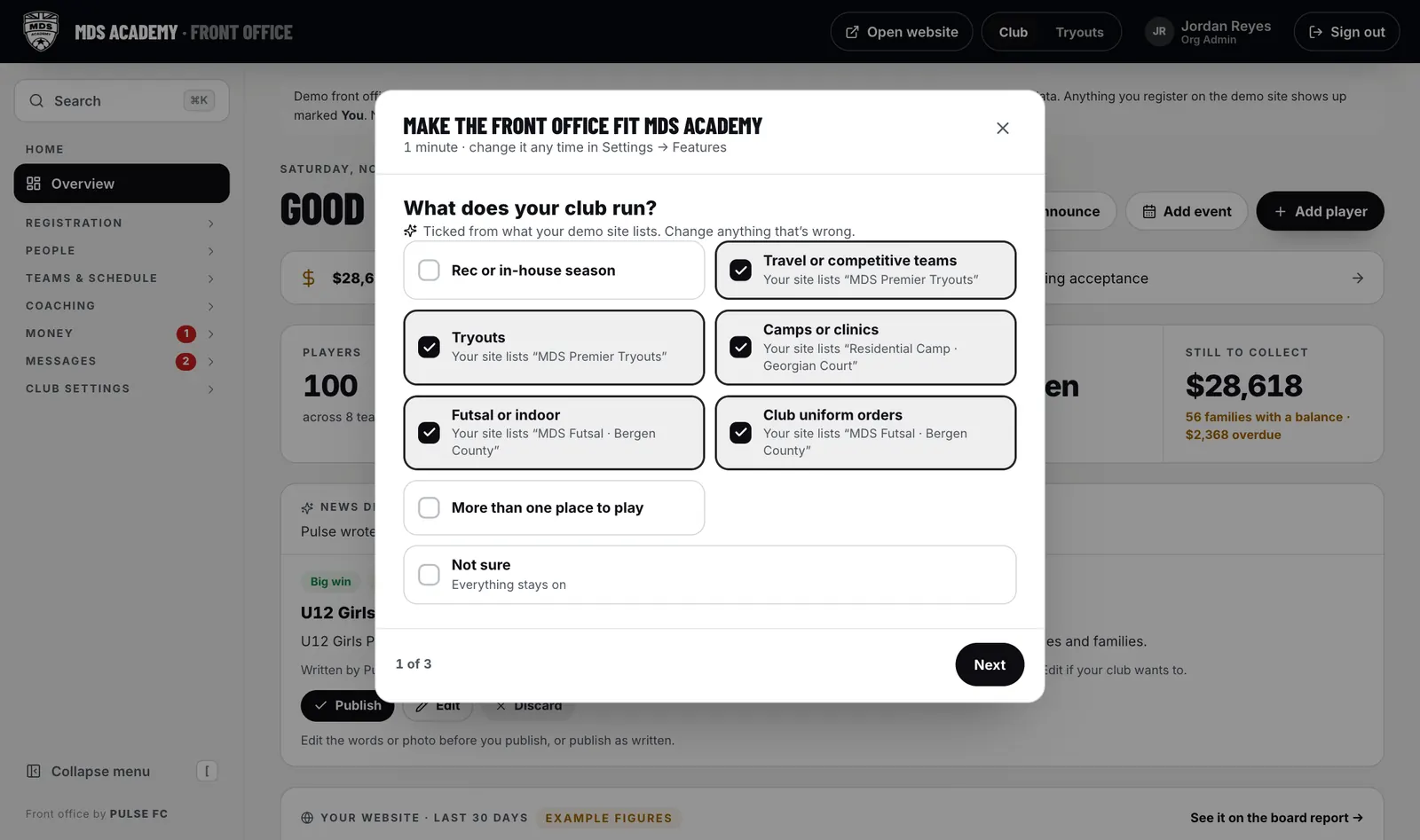
It fits your club in a minute.
The first administrator gets three questions: what your club runs, how families pay, and who helps. The answers switch off what you don’t use (say, uniforms or tournaments) and put what you do first. Nothing holding data is switched off, and you can change it any time in Settings.
The money, in the open.
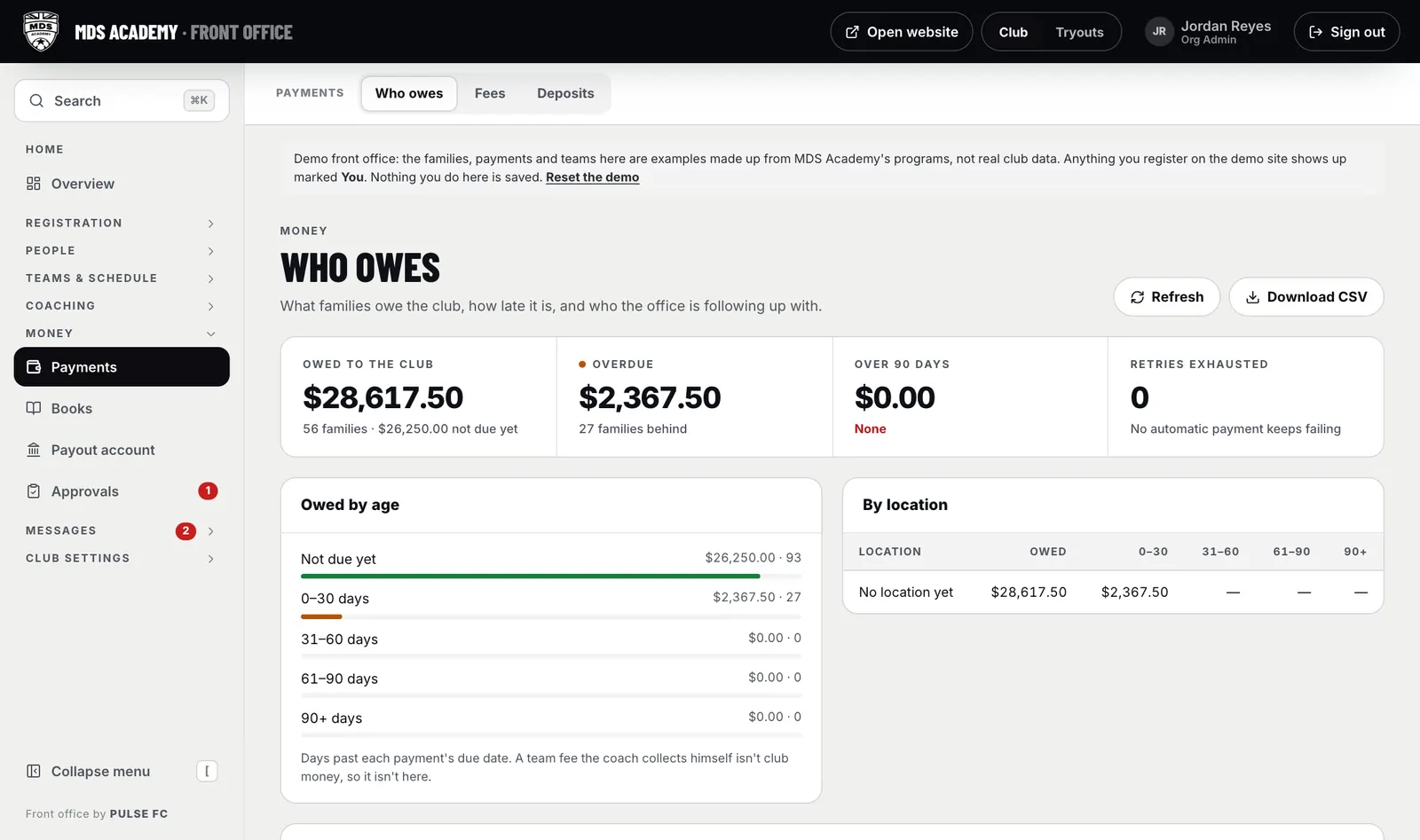
Who owes
Every family behind, how late, by age of debt and by location, with reminders that go out by themselves.
Approvals
Refunds, waivers and aid above a limit you set need a second person. Nobody approves their own.
The audit trail
Every change to money and records: who, when and why.
The board report
The year so far against your budget, ready to print or save as a PDF.
The QuickBooks journal
One balanced entry for each payment and deposit, with Stripe’s fees and Pulse’s 1% as their own lines.
Downloads
Players, fees and payments from Settings, whenever you like (family contacts and events too); other records on request.
Every screen is MDS Academy on Pulse, with made-up families and example figures. The figures are illustrative on each screen and aren’t meant to add up from one screen to the next.
See your club on Pulse.
Send us your website. We’ll build your club’s website and front office by hand and email you the link within 48 hours.